
Microsoft Teams Governance Best Practices: A Practical Guide for Getting It Right
Microsoft Teams makes collaboration easier - but without a plan, it can also create clutter, confusion, and security risks. The good news? You don’t need an overly complex permissions setup to keep Microsoft Teams organized and secure. With the right prep work in place, you can give users flexibility while still maintaining safety and security for everyone.
This guide walks through practical Microsoft Teams governance best practices you can implement step by step, with room to adapt as your organization grows.
1. Standardize Microsoft Teams Creation (Without Slowing People Down)
Giving users the freedom to create Microsoft Teams encourages adoption and reduces that feeling that they’re just using someone else’s things. At the same time, unlimited creation often leads to duplicate teams, unclear ownership, and abandoned workspaces.
A simple standard for Microsoft Teams creation helps strike the right balance.
Things to define early:
- Who can create Microsoft Teams?
- When should users create a new team versus reuse an existing one?
- How will naming conventions stay consistent?
2. Plan Guest Access in Microsoft Teams from Day One
External users - like vendors, partners, or contractors - are often essential to getting work done in Microsoft Teams. But managing guest access becomes much harder if it’s treated as an afterthought.
A clear guest access approach keeps collaboration moving while reducing risk.
Questions to answer:
- Who can invite guests to Microsoft Teams?
- Is there an approval or review process?
- What can guests access (teams, channels, files, SharePoint sites)?
3. Set Up a Tagging System That Actually Scales
Tags in Microsoft Teams make it easier to reach the right people, especially in larger teams. Without guidelines, though, tags can quickly become inconsistent or confusing.
Decide upfront who can create and manage tags and how they should be used.
Common Microsoft Teams Tag Types
- Suggested (Default) Tags – Predefined by owners (limited to 25) (Things like “@Everyone”)
- Custom Tags – Created by users for flexible grouping (Examples like “@Marketing”, “@Sales”, “@ProjectXYZ” or “@Customer123”)
- Shift Tags – Automatically assigned through the Shifts app (Such as “@Support”
4. Avoid Ownerless Microsoft Teams
Ownerless Microsoft Teams are one of the most common governance issues - and one of the easiest to prevent. Every team should always have at least one active owner responsible for access, settings, organization, and membership.
Best practices include Making the team creator an owner by default, Assigning owners based on role, and Requiring a minimum of two owners per team
5. Manage the Microsoft Teams Lifecycle
Not every Microsoft Team needs to live forever. Once a project ends, its team should be archived or removed to reduce clutter and risk.
Lifecycle management keeps Microsoft Teams searchable, relevant, and easier to govern.
Your lifecycle plan should cover Team expiration policies, How and when teams are archived, and How inactive teams are identified
6. Train Users on How to Use Microsoft Teams the Right Way
Governance works best when users understand the “why,” upfront, not just the rules. Training and clear communication help users work confidently in Microsoft Teams without creating unnecessary risk.
Effective approaches include Training for new hires, Short refreshers for existing users at set times (not just when things are going wrong), and Clear documentation for common scenarios
7. Audit and Review Microsoft Teams Regularly
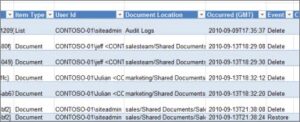
Governance isn’t a one-time setup. Regular audits help ensure Microsoft Teams policies are being followed and that risks are identified early.
Monitoring options include:
- Microsoft 365 audit logs
- Automated or scheduled reporting tools
8. Use Role-Based Access Control in Microsoft Teams
Role-based access control (RBAC) helps ensure users only have the permissions they need. This reduces risk while keeping collaboration efficient. Check out the link for details of what your permissions and roles mean here: https://learn.microsoft.com/en-us/microsoftteams/teams-channels-overview
9. Review and Adjust Microsoft Teams Governance Over Time
Microsoft Teams governance should evolve with your organization. Regular reviews help ensure your policies still support how people actually work.
Ways to review governance health:
- User feedback and surveys
- Usage and adoption metrics
- Policy reviews against best practices
10. Additional Things to Consider
Define Data Retention Rules for Microsoft Teams
Data retention is a core part of Microsoft Teams governance. Without clear rules, data might be deleted too soon – or kept too long, increasing compliance risk. Retention policies help protect your organization while keeping information accessible when needed. Many industries have their own regulations for data, so make sure to check any regulations you need for their Data Retention Requirements.
Set Expectations for Chat and Channel Behavior
Microsoft Teams is a communication tool, but it still needs boundaries. Clear moderation and acceptable-use guidelines help maintain a respectful, professional environment. When expectations are clear, enforcement becomes easier and more consistent.
Control Apps and Integrations in Microsoft Teams
Apps make Microsoft Teams more powerful – but unmanaged apps can introduce security and compliance risks. Governance should define which apps are approved and how new ones are reviewed.
Use Sensitivity Labels to Protect Data in Microsoft Teams
Microsoft Teams often contains sensitive information, from customer data to internal financials. Sensitivity labels help control how that information is shared and accessed. They’re especially important for organizations with compliance or regulatory requirements.
Prepare for eDiscovery and Legal Hold in Microsoft Teams
If your organization is involved in a legal matter, Microsoft Teams data may need to be preserved. Having eDiscovery and legal hold processes in place ahead of time reduces stress and risk later.
Don’t Over-Restrict Microsoft Teams Users
Too many restrictions can slow users down and push them toward unsanctioned tools. The goal is to guide – not block – collaboration. Clear communication, smart defaults, and flexibility go a long way.
Encourage Adoption with Self-Service (Plus Guardrails)
When users can confidently manage their own Microsoft Teams, adoption improves naturally. Templates, automation, and clear guidance allow self-service – while governance quietly works in the background.